


Gboard - the Google Keyboard
4.5440.73K Reviews
App Specs
- Version
- Varies with Device
- Updated On
- License
- Free
- Downloads
- 10,000,000,000+
- Developer
- Google LLC
- Categories
- Tools
- Platform
- Android, iOS
Screenshots

 Analysis by AppCompare
I judge a phone keyboard less by how clever its features sound than by whether it gets out of my way when I need to reply quickly, switch languages, or enter something awkward like an address. That makes Gboard - the Google Keyboard an easy one to consider: it is a free typing tool from Google LLC, and its strengths show up in everyday messaging rather than in a long setup routine. It suits people who want one familiar keyboard for chats, searches, and quick notes, though anyone who prefers a stripped-back or highly specialized typing experience may want to compare alternatives first.
What I would decide before switching
The main question is not whether this keyboard has plenty of features; it is which ones you will actually use. If you often send messages in more than one language, dictate while your hands are occupied, or add GIFs and emoji without leaving a conversation, Gboard brings those tasks together. If you mainly type short messages and never touch keyboard tools, the default keyboard on your phone may already be good enough.
I would also consider how much you want your keyboard to adapt to your habits. Suggestions can save taps once they match the way you write, but they may feel distracting if you prefer to choose every word yourself. A keyboard is used across many apps, so even small annoyances—an unfamiliar layout, an unwanted suggestion, or a missed swipe—can matter more than a feature you only use now and then.
Guides and Analysis on Gboard - the Google Keyboard
How Gboard fits everyday typing
I look at Gboard as a keyboard that earns its place through the small tasks it can simplify, not because everyone needs every tool it offers. In this section, I’ll focus on how its shortcuts fit into ordinary conversations and where a little restraint makes them more useful. That practical view also helps explain which parts of the experience are worth trying first.
First Impressions: Setting Up
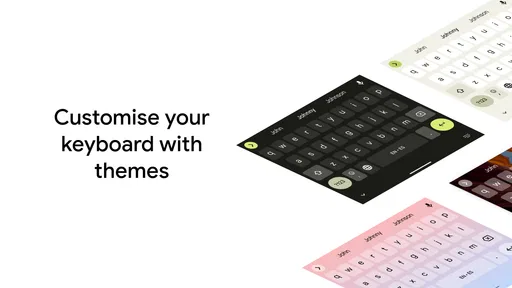
Getting started with Gboard is a breeze. As soon as you download it from the Play Store or App Store, the setup process guides you through enabling the keyboard in your settings. It's pretty straightforward, even if you’re not super tech-savvy. Once enabled, you can dive into the customization options, which are honestly where the magic happens. From themes to layout preferences, Gboard lets you personalize your typing experience to suit your style.
Features That Stand Out
One of the features I love is the integrated Google Search. It’s like having Google right in your keyboard. Need to look up a random fact or find a nearby café while texting? Just tap the "G" icon, and boom, you’ve got your answers without leaving your chat. Talk about multitasking!
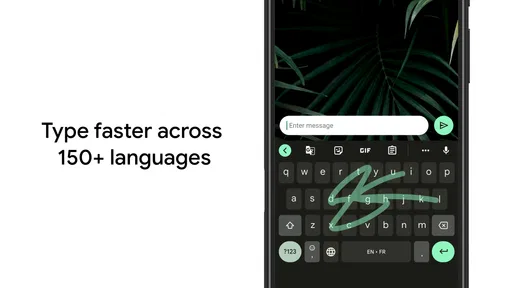
Another nifty feature is Glide Typing. Instead of tapping each key, you glide over the letters, and Gboard predicts the word. It’s surprisingly accurate and makes typing one-handed a lot easier, especially when you’re juggling a coffee in the other hand. Plus, it’s fun to use. Seriously, give it a whirl!
Worth Reading Before You Choose

Basketball Stars: Multiplayer Is Fast, but Can It Recover When Matches Go Wrong?

WEBTOON Turns Phone Updates Into a Better Reading Routine

Link to Windows Runs on Shared Habits, Not Social Feeds

How Alibaba.com Dominates the B2B Marketplace

Metro's Quiet Rise: Redefining Mobile Communication

Harnessing Ecosystem Power with Phone Tracker by Number
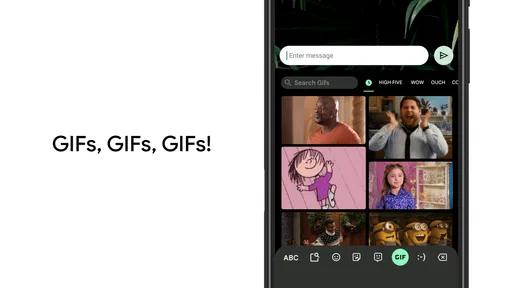
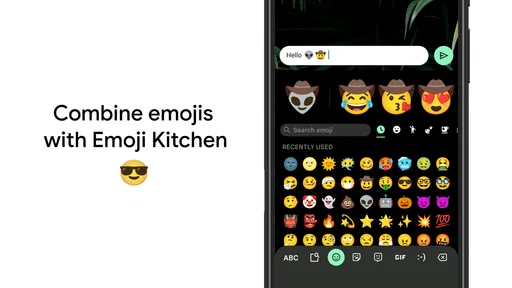
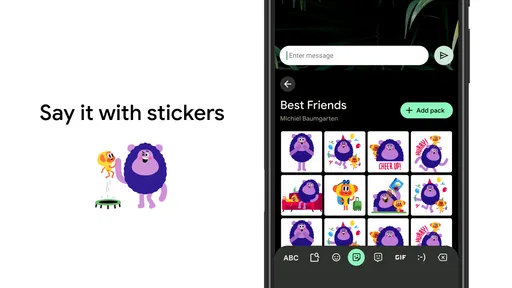
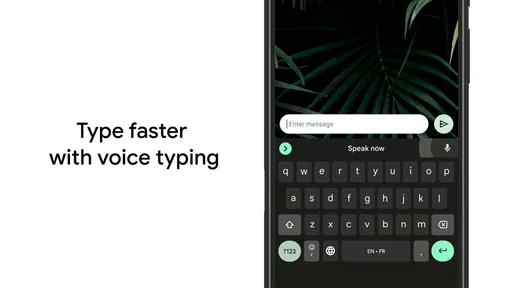
For the emoji lovers, there’s an emoji search feature and a vast collection of stickers and GIFs. Trust me, your conversations will never be dull again. And if you’re someone who loves voice typing, Gboard has got you covered with its seamless voice-to-text option. It’s fast, and the accuracy is pretty impressive.
A World of Languages
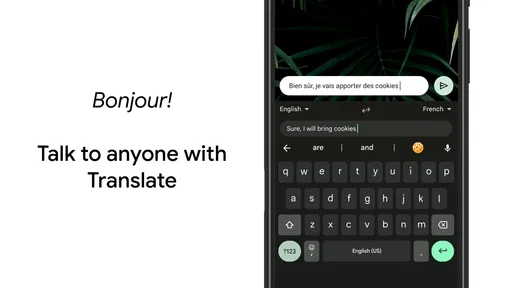
If you’re multilingual or learning a new language, Gboard supports hundreds of languages. Switching between them is effortless, and the app even offers real-time translation. It’s like having a mini translator in your pocket, which is super handy when you’re trying to break language barriers in your conversations.
Small habits that make the tools more useful
I get more value from the keyboard when I treat its extras as optional shortcuts, not as a new way I have to type. For example, swipe typing is worth trying on a familiar phrase first, rather than judging it by an unfamiliar name or technical term. When it guesses wrong, a quick correction can be less effort than returning to individual taps; for precise text, tapping each letter remains the safer choice.
Search and GIF tools are most useful when I need to share something in the moment. Looking up a place or a quick fact during a chat can avoid jumping between apps, but I would still open a full browser or map when I need to compare results carefully. The keyboard is a convenient entry point, not a replacement for every app it can help me reach.
Smart Suggestions and AI
The predictive text and smart suggestions are on point. Over time, Gboard learns your typing habits and frequently used phrases, making your texting experience faster and smoother. The AI even suggests emojis based on the words you type. Typed "birthday"? Here’s a cake emoji just for you!
Suggestions work best when I glance at them rather than accepting them automatically. Names, uncommon spellings, and context-dependent wording can still need a human check, especially in work messages or anything important. I would keep the keyboard’s suggestions as a convenience, not treat them as proofreading: before sending a long note, I read it once from top to bottom.
A realistic day with one keyboard
Imagine leaving a short voice message as text while carrying shopping, then replying to a family group chat with a GIF, and later switching to another language to answer a friend. Gboard can make each of those small transitions feel less disruptive because the tools live in the typing interface. That is where I see its practical advantage: not one spectacular feature, but fewer reasons to stop, close the conversation, and find a separate tool.
There are limits to that convenience. Voice input depends on being somewhere you can speak comfortably, and it is not ideal for private messages in a public place. GIFs and stickers can make a casual exchange warmer, but they are not a substitute for clear wording in a serious conversation. I use those features selectively; having them available is useful even when plain text is the better choice.
Changing languages without losing your rhythm
For multilingual users, the real test is how smoothly a keyboard handles a conversation that shifts between languages, rather than how many language names appear in a menu. Gboard’s language support and translation tools can reduce friction when chatting with people who use different languages. I would still check translated wording before sending anything sensitive, formal, or easily misunderstood. A quick translation can help start a conversation, but it cannot guarantee that tone and nuance have carried over.
If you are learning a language, switching the keyboard can also make it easier to enter the characters and words you need. I would use it alongside a proper learning resource, though: a keyboard helps you write, while learning vocabulary and grammar takes more than typing suggestions. This distinction matters if you are choosing between a general keyboard and a dedicated language-learning app.
Where another keyboard may suit you better
Compared with the keyboard already built into a phone, Gboard’s appeal is its collection of Google-linked conveniences, language options, and ways to add expressive content. A built-in keyboard may be the better choice if it already feels comfortable and you want to avoid changing a system-level habit. The difference is personal: if you rarely use search, swipe typing, or media shortcuts, installing another keyboard may not improve your day.
There are also third-party keyboards aimed at a narrower preference, such as a minimal layout or a more tailored appearance. Those may fit someone who wants fewer suggestions or a particular typing style more closely. I would compare the actual layout and controls rather than assume that more features means a better keyboard. For people who type long passages on a phone, a physical keyboard or a writing-focused app may be a more meaningful upgrade than replacing one on-screen keyboard with another.
Privacy, permissions, and sensible expectations
In the age of data privacy concerns, you might be wondering how Gboard handles your data. Google states that it doesn’t store your keystrokes unless you’re using the search feature. All in all, it seems pretty secure, but it’s always good to stay informed about app permissions and privacy policies.
Because a keyboard handles text as you enter it, I think it is sensible to take a moment during setup to read the system prompts and the app’s current privacy information. I would not enable a feature simply because it is offered; I would decide whether its convenience is worth using in my own routine. Anyone whose work involves highly confidential text, or who is uncomfortable with a third-party keyboard, may prefer the phone’s built-in option and its familiar system controls.
Who should make the switch—and who can skip it
I would recommend trying Gboard if you move between languages, rely on voice typing, or regularly share emoji and GIFs in conversations. It is also a sensible pick if you like the idea of search tools close at hand and want to adjust the keyboard’s look or layout. Google’s keyboard is a broad, everyday option rather than a specialist tool, which is exactly why it can suit a wide range of routines.
I would skip the switch if your current keyboard already does everything you need, if you dislike predictive suggestions, or if you want to minimize the number of services involved in typing. People who write long documents may also find that a larger screen, dedicated writing app, or external keyboard solves their problem better. The right choice depends less on a feature checklist than on the moments when your present keyboard slows you down.
What switching really costs
There is no purchase price to weigh: Gboard is free, and it is rated for Everyone. Still, switching has a small time cost. You need to enable it, get used to its layout, and decide which language and personalization settings suit you. I would keep the old keyboard available while trying the new one, then judge it across ordinary tasks instead of making a decision after one quick message.
The adjustment is especially noticeable if you have built muscle memory around a different key size or punctuation layout. Spend a little time testing the tasks you actually do—typing a web address, correcting a name, entering a message with punctuation, and changing languages. If those feel natural after a short trial, the change is likely worthwhile; if you keep fighting the layout, returning to the familiar keyboard is a reasonable outcome.
A widely used tool, with ordinary trade-offs
Gboard is a Tools app from Google LLC, released on June 5, 2013. It has a 4.5 average from around 19 million ratings, with roughly 439,000 written reviews and over 10 billion installs. Those figures suggest it is a familiar choice for many users, but popularity does not tell me whether its suggestions, layout, or privacy approach will suit a particular person. I would use the trial itself as the deciding factor.
What stands out most to me is the mix of practical typing methods and conversation extras in one place. What I would not expect is perfection: predictions can miss, translation deserves a check, and voice typing is not convenient in every setting. Those are manageable trade-offs for a general keyboard, provided you choose the features that help and ignore the rest.
Final Thoughts
So, is Gboard worth the download? I’d say absolutely. It combines functionality with fun, and the ease of use is a huge plus. Whether you’re a casual texter or someone who’s always on the go, Gboard adapts to your style and needs. And with constant updates from Google, you know you’re getting a reliable app. So go ahead, give it a try and see how it transforms your typing game. You might just find it’s the keyboard you never knew you needed.
Pros
- Fast and responsive typing experience.
- Seamless Google search integration.
- Supports multiple languages effortlessly.
- Customizable theme options.
- Voice typing is highly accurate.
Cons
- Occasional lag on certain devices.
- Limited emoji customization options.
- Some features require internet access.
- Can drain battery with heavy usage.
- Gesture typing can be imprecise.
FAQs for Gboard - the Google Keyboard
What features does Gboard offer that make it stand out from other keyboards?
Gboard offers a variety of features that enhance typing efficiency and user experience. It includes glide typing, voice typing, and handwriting recognition. The built-in Google Search allows users to search and share information directly from the keyboard. Furthermore, it supports multilingual typing, emoji and GIF suggestions, and customizable themes, making it highly versatile.
How does Gboard handle privacy and data security?
Gboard is designed with user privacy in mind. It processes most of the text input directly on the device, reducing data sent to Google servers. While it may collect certain usage statistics to improve the app, it does not share personal data. Users can review and adjust privacy settings to control what information is shared.
Is Gboard compatible with all Android and iOS devices?
Gboard is compatible with most Android and iOS devices, though users should ensure their device's operating system is up to date. On Android, it requires version 5.0 (Lollipop) or later, while iOS devices need version 10.0 or later. Performance may vary slightly depending on the device's specifications and software version.
Can Gboard support multiple languages simultaneously?
Yes, Gboard supports multiple languages and allows users to switch between them seamlessly. It offers a vast array of languages and dialects, enabling multilingual typing without needing to switch keyboards. Users can add languages through the app’s settings and customize their language preferences easily.
How can I customize the appearance of Gboard?
Gboard offers several customization options to personalize the keyboard's appearance. Users can choose from a variety of themes, including light, dark, and custom color options. Additionally, users can create their own themes using personal photos or designs. These settings can be accessed and adjusted in the app’s theme section.


